
An AI agent holding your PinBridge API key can do anything that key can do, and unless you set it up otherwise, that includes deleting. One of the tools on the MCP server is delete_board. It removes the board on Pinterest along with every pin on it, and one misread instruction is enough to set it off.
Most agents only need to publish. So give them a key that publishes and can’t do anything else.
PinBridge API keys take scopes, plus an optional list of the Pinterest accounts the key may touch. You set both when you create the key, and PinBridge checks them on every call, however the agent connects.
Three scopes
Every key holds some mix of three scopes:
| Scope | What it allows |
|---|---|
read |
Reading and listing: accounts, boards, pins, schedules, analytics, the rate meter, the activity log |
write |
Creating and changing: pins, schedules, boards, uploads, webhooks, retries, cancelling a scheduled pin |
destructive |
Deleting pins, schedules, boards, uploads and webhooks, disconnecting a Pinterest account, revoking API keys, cancelling the subscription |
The scopes are separate grants. None of them includes another. A key with only write can create a pin but can’t list boards, so an agent that publishes needs read and write.
A key created through the API without a scopes field gets all three, and so does any key made in the dashboard before these controls existed. New keys made in the dashboard start with read and write only.
Make a key that can’t delete
In the dashboard, open Developers, then API Keys, and click Create. Name the key after the agent or tool that will use it. Read and Write are ticked and Delete isn’t, so you can leave those as they are. Under Pinterest accounts, leave it on all accounts, or choose “Only the accounts I choose” and tick the ones this key may use. The key appears once after you click Create key, so copy it straight into the agent’s settings.
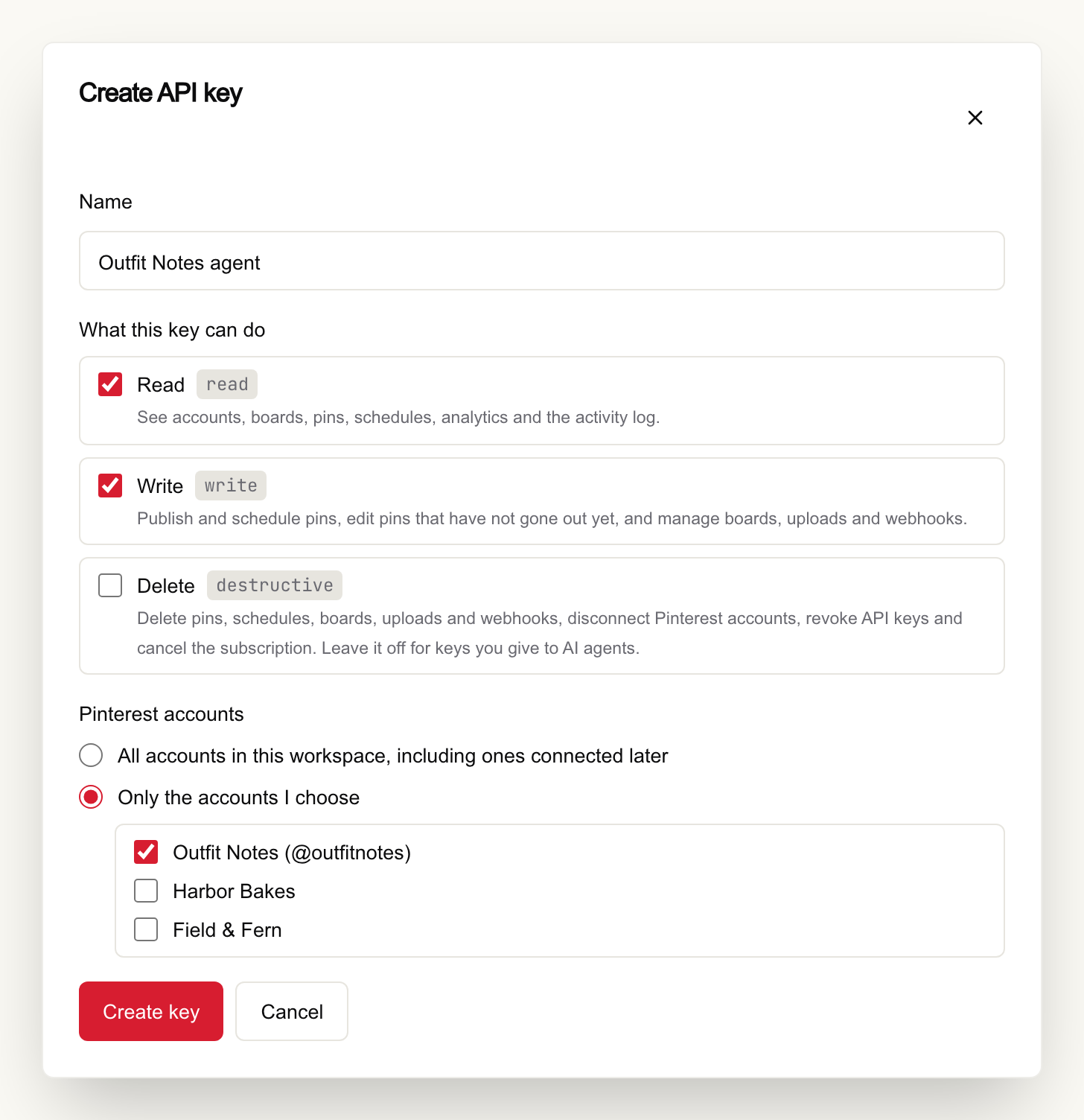
Already have a key with full access? Open it on the same page, click Edit and untick Delete. The change applies to the next request made with that key.
From code, it’s one call, made with a key you already have:
curl -X POST "https://api.pinbridge.io/v1/api-keys" \
  -H "X-API-Key: $PINBRIDGE_ADMIN_KEY" \
  -H "Content-Type: application/json" \
  -d '{
    "name": "claude-agent",
    "scopes": ["read", "write"],
    "pinterest_account_ids": ["'"$CLIENT_ACCOUNT_ID"'"]
  }'
pinterest_account_ids is optional, and it’s covered further down. This is what came back when we ran the call in a test workspace (IDs shortened, and the name changed to match the example):
{
  "id": "abf01c1f-…",
  "name": "claude-agent",
  "scopes": ["read", "write"],
  "pinterest_account_ids": ["3d9acb2d-…"],
  "api_key": "pb_live_…",
  "created_at": "2026-11-14T19:21:56Z"
}
The full key appears once, in api_key. Put it wherever the agent reads its settings. Keep your full-access key somewhere the agent can’t reach.
The same call from the Python SDK:
import os

from pinbridge_sdk import PinbridgeClient
from pinbridge_sdk.models import APIKeyCreate, APIKeyScope

with PinbridgeClient(api_key=os.environ["PINBRIDGE_ADMIN_KEY"]) as admin:
    created = admin.api_keys.create(
        APIKeyCreate(
            name="claude-agent",
            scopes=[APIKeyScope.READ, APIKeyScope.WRITE],
            pinterest_account_ids=[os.environ["CLIENT_ACCOUNT_ID"]],
        )
    )
    agent_key = created.api_key  # shown once
What the agent gets when it tries to delete
We pointed that key at DELETE /v1/pins/{id}. The API answered 403 before it even looked the pin up (response trimmed):
{
  "error": {
    "code": "insufficient_scope",
    "message": "This API key does not have the 'destructive' scope.",
    "required_scope": "destructive",
    "granted_scopes": ["read", "write"]
  }
}
Over MCP, the agent still sees delete_pin and delete_board in its tool list. The server marks them as destructive, so clients such as Claude ask you before calling them. If you click Allow anyway, the API still says no. That prompt comes from the client, and people click through prompts. The scope is checked by PinBridge itself, whether the call arrives through MCP, the REST API, the SDK or n8n.
In Python, the refusal is an exception with the code attached:
from pinbridge_sdk.errors import APIError

try:
    agent.pins.delete(pin_id)
except APIError as err:
    print(err.status_code, err.code)  # 403 insufficient_scope
A key can’t hand out more than it holds
A key with write can create API keys. That looks like a way around the scopes, so we tried it. A request with no scopes field asks for all three:
curl -X POST "https://api.pinbridge.io/v1/api-keys" \
  -H "X-API-Key: $AGENT_KEY" \
  -H "Content-Type: application/json" \
  -d '{"name": "escalate"}'
It came back as the same 403 insufficient_scope, naming destructive. Edits follow the same rule. A PATCH on any key can’t grant a scope the calling key lacks. A key tied to certain accounts can’t issue a key for other accounts, or for all of them.
One key per client
The second control is pinterest_account_ids. With it, the key works only on the Pinterest accounts you list, and each of them has to be connected to the workspace. Anything else gets a 403 with the code account_not_permitted and the message “This API key is not allowed to act on the requested Pinterest account.”
Lists follow the same rule. Accounts, pins, schedules, analytics and the dashboard summary only return what the key is allowed to see.
For an agency, that means one key per client automation. A bug in one client’s n8n workflow can’t publish to another client’s account, and an agent set up for one brand never sees the others. Each plan caps active keys: 1 on Playground, 2 on Starter, 5 on Growth and 15 on Agency (pricing). Connecting an assistant doesn’t use one.
The allow-list doesn’t split the whole workspace, though. Webhooks, the activity log and uploaded media belong to the workspace, and any key with read can see them. Think about that before you give a key to a client instead of keeping it in your own automations.
Narrow the key your assistant already has
When you connect Claude or ChatGPT with OAuth (how that works), PinBridge creates a key for that connection, and it has every scope. It shows up on the API Keys page with an Agent badge and the app’s name. Click Edit, untick Delete and save.
Through the API, the same key is in GET /v1/api-keys with "source": "oauth" and the app’s name in client_name, and you narrow it like any other key:
curl -X PATCH "https://api.pinbridge.io/v1/api-keys/$CONNECTOR_KEY_ID" \
  -H "X-API-Key: $PINBRIDGE_ADMIN_KEY" \
  -H "Content-Type: application/json" \
  -d '{"scopes": ["read", "write"]}'
There’s one catch. If the same person reconnects the same app, PinBridge revokes that key and creates a new one with every scope. Narrow it again after a reconnect.
What write can still do
Taking away destructive doesn’t make a key harmless. A write key can cancel a scheduled pin, edit pins that haven’t published yet, rename a board, and publish a pin you never wanted. A published pin can’t be edited through the API, so a bad one stays live until you take it down.
Scopes don’t look at what the agent publishes. For that, a dry run lets the agent check a pin before it goes out, and an idempotency_key keeps a retry from posting the same pin twice. The MCP post covers both.
A setup that holds up
- Keep one full-access key for yourself in a password manager, and out of every agent’s settings.
- Give each agent or automation its own
readandwritekey with a name that says what it’s for.last_used_atin the key list shows which ones are still in use. - Add
pinterest_account_idswhen an automation serves a single client. - Narrow the connector key after you connect an assistant, and again after you reconnect it.
- Revoke a key when its job ends. Revoking takes
destructive, so do it with your own key.
Every field is in the API keys reference. If you haven’t connected an assistant yet, start with Claude or ChatGPT, and give it a key that can’t delete anything. Start free.