
Update, 28 October 2026. PinBridge is now listed in Claude’s connector directory. The quickest way in is to open PinBridge there and click Connect to Claude. The MCP setup guide has the steps. Claude has also moved connectors from Settings to Customize, so your screens will look a little different from the screenshots below. The custom connector steps still work and use the same sign-in. Using ChatGPT? Install the PinBridge plugin from ChatGPT’s Plugins directory instead, as shown in the ChatGPT guide.
When we launched the PinBridge MCP server, there was one way to connect: create a PinBridge API key, copy it, and paste it into a JSON config or a --header flag. Developers in Claude Code or Cursor barely notice that step. For everyone else it’s an odd one. You’re putting a long-lived secret in a text file, and each teammate has to repeat it on their own machine.
Claude can now connect to PinBridge with OAuth. You add https://mcp.pinbridge.io as a connector, sign in to PinBridge in a browser window, choose a workspace, and click Authorize. You never copy a key.
Set up the connector in Claude
The screenshots below come from the Claude desktop app on a Mac. On claude.ai in a browser, the Settings and Connectors screens are the same.
-
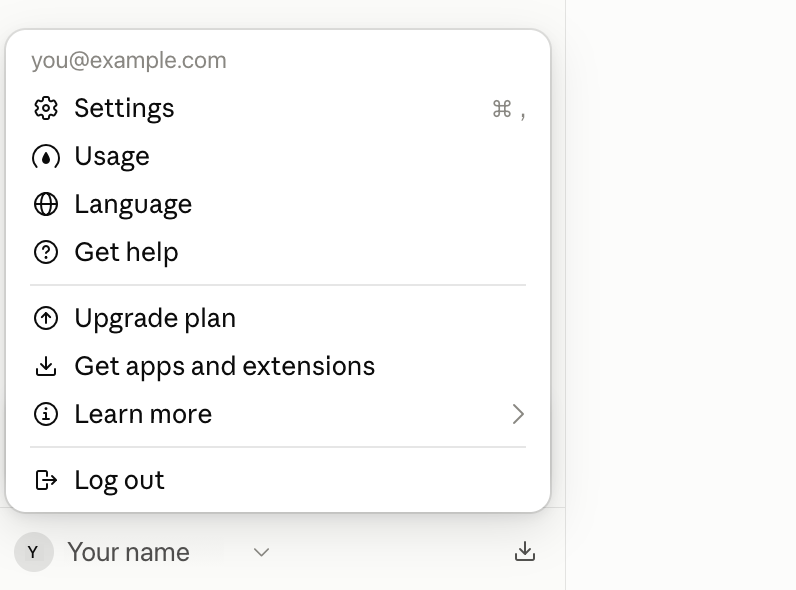
Click your name in the bottom-left corner and choose Settings.
-
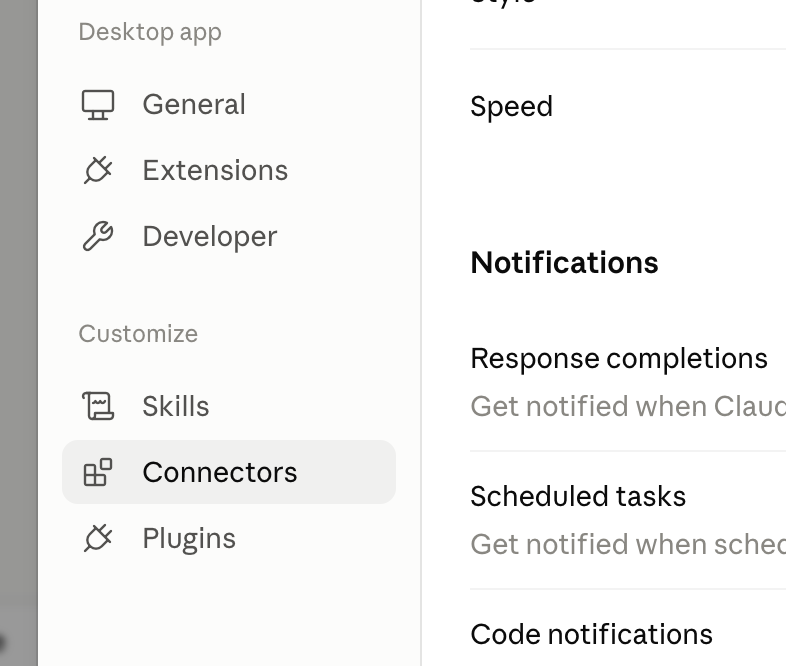
Select Connectors in the sidebar.
-
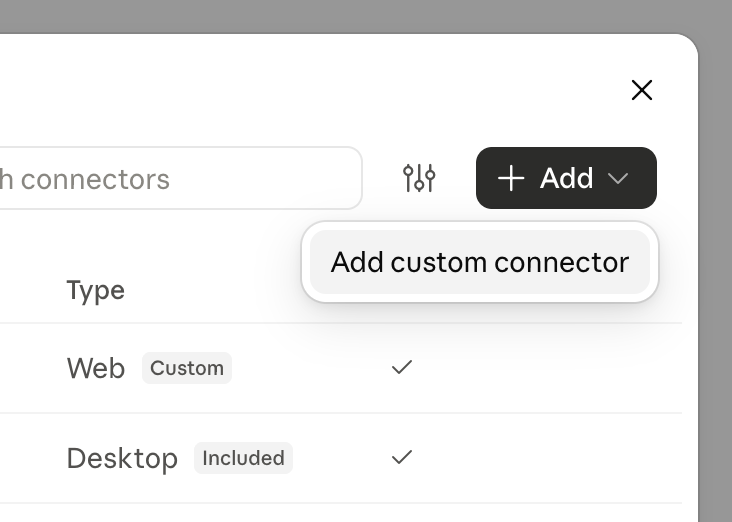
Click Add, then Add custom connector.
-
Enter a name, such as PinBridge, and the URL
https://mcp.pinbridge.io. Click Continue.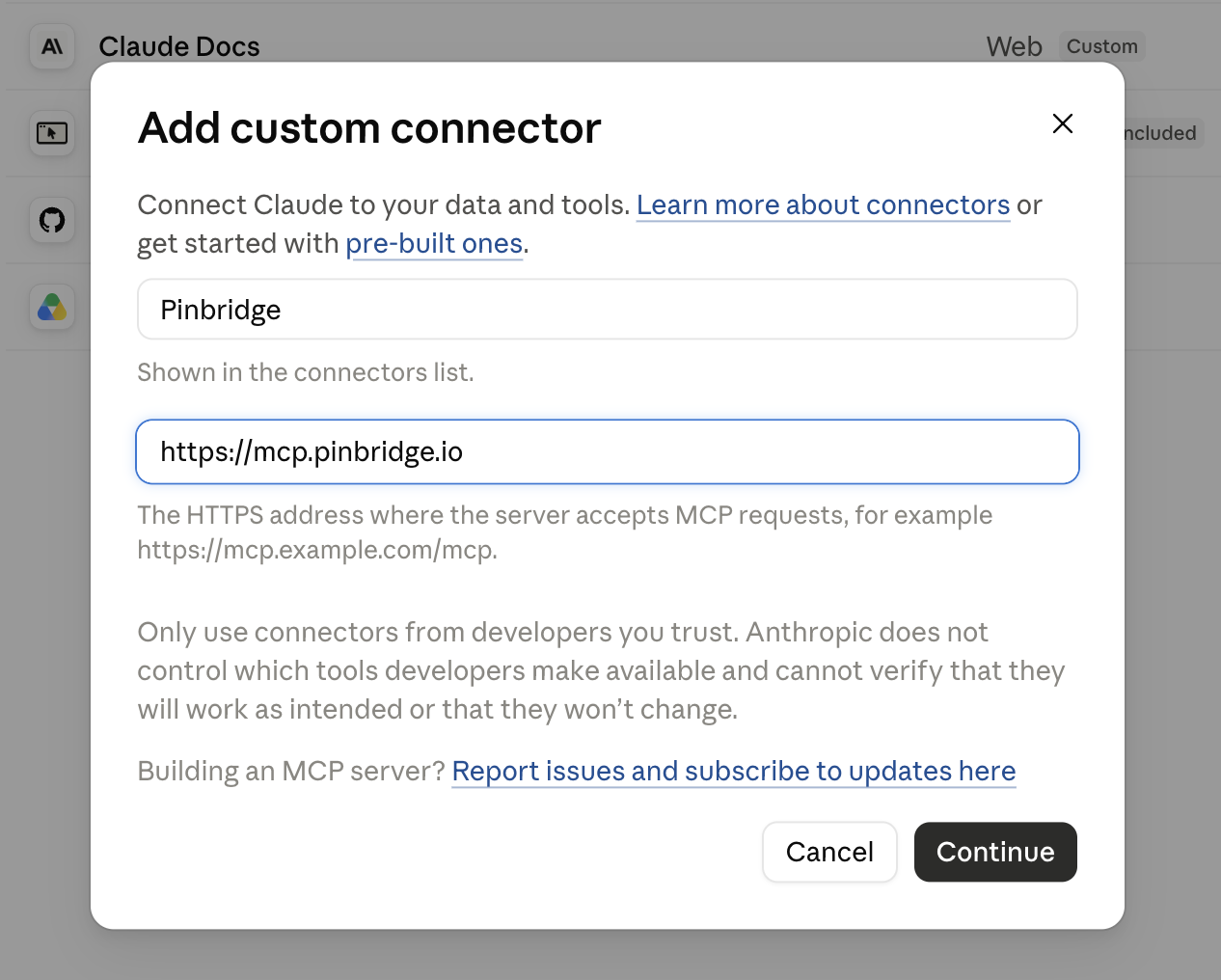
-
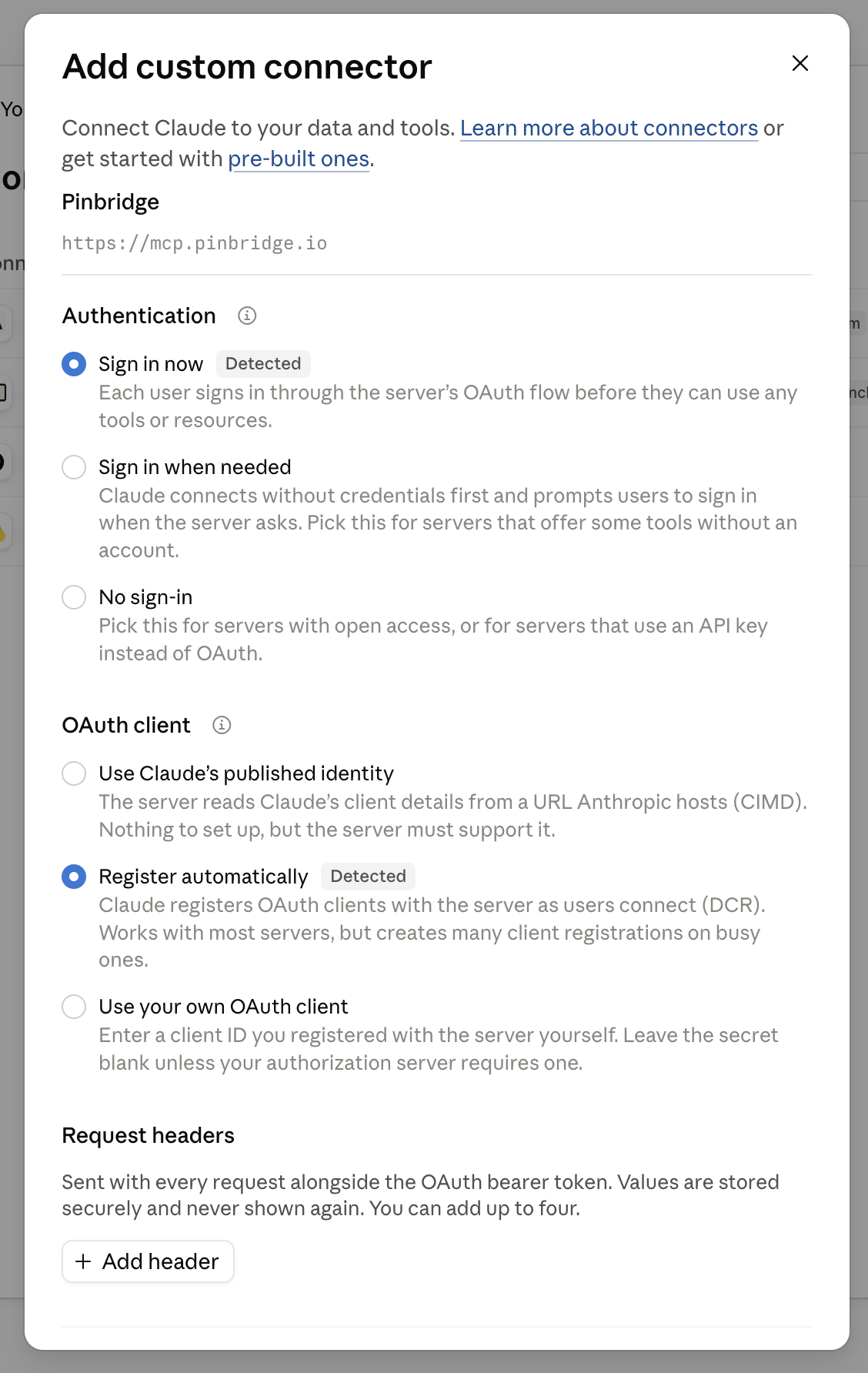
Under Authentication, select Sign in now. Under OAuth client, select Register automatically. Claude has already marked both as Detected. You don’t need to add request headers.
-
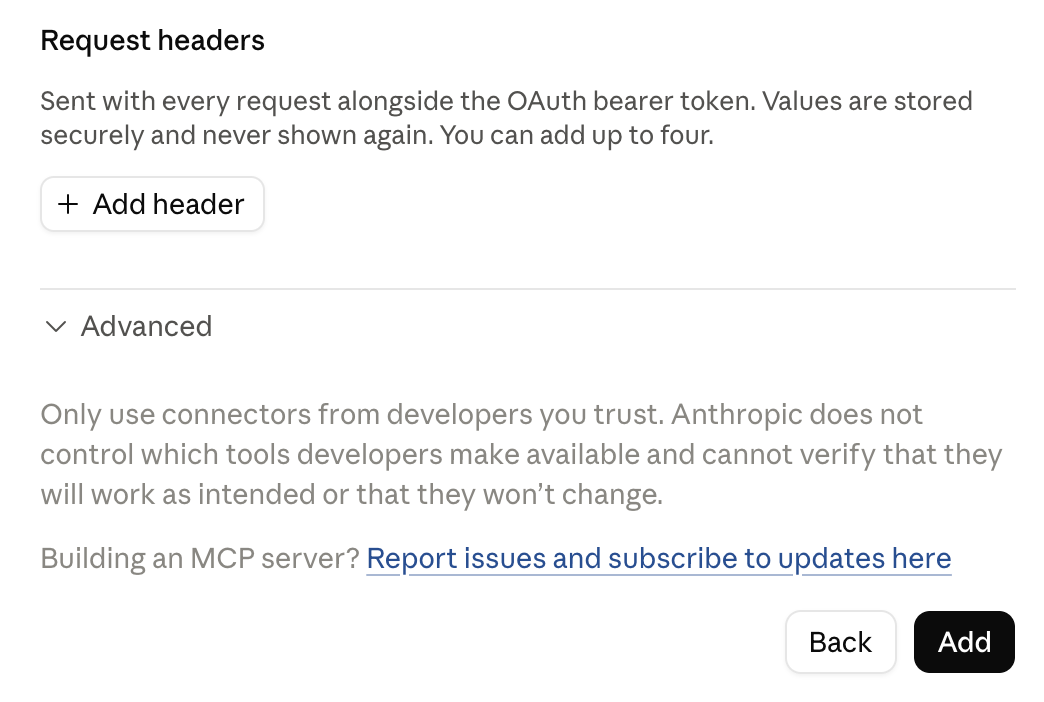
Scroll down and click Add.
-
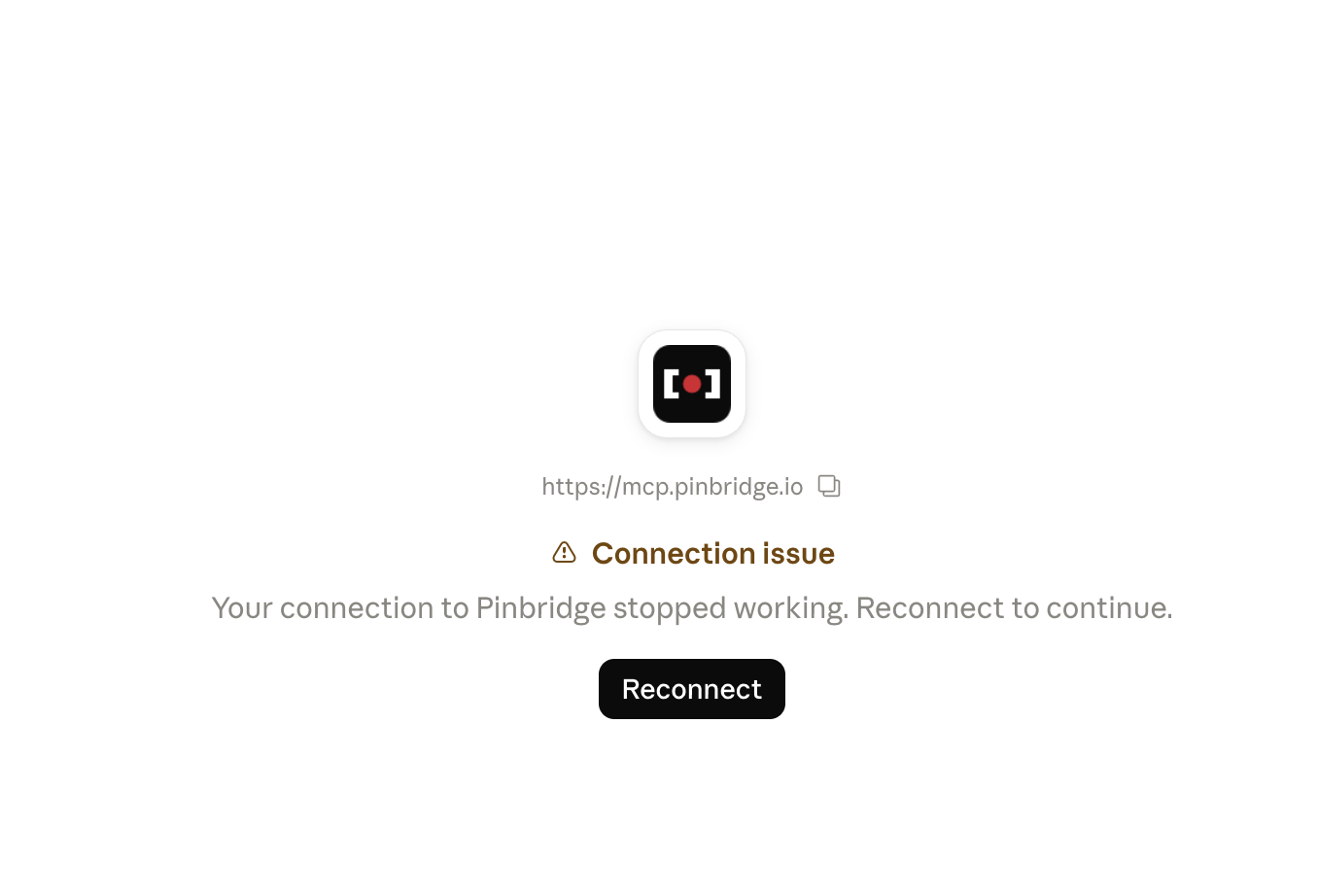
On the connector’s page, click Connect. If you’ve connected before, the button says Reconnect, as in this screenshot.
-
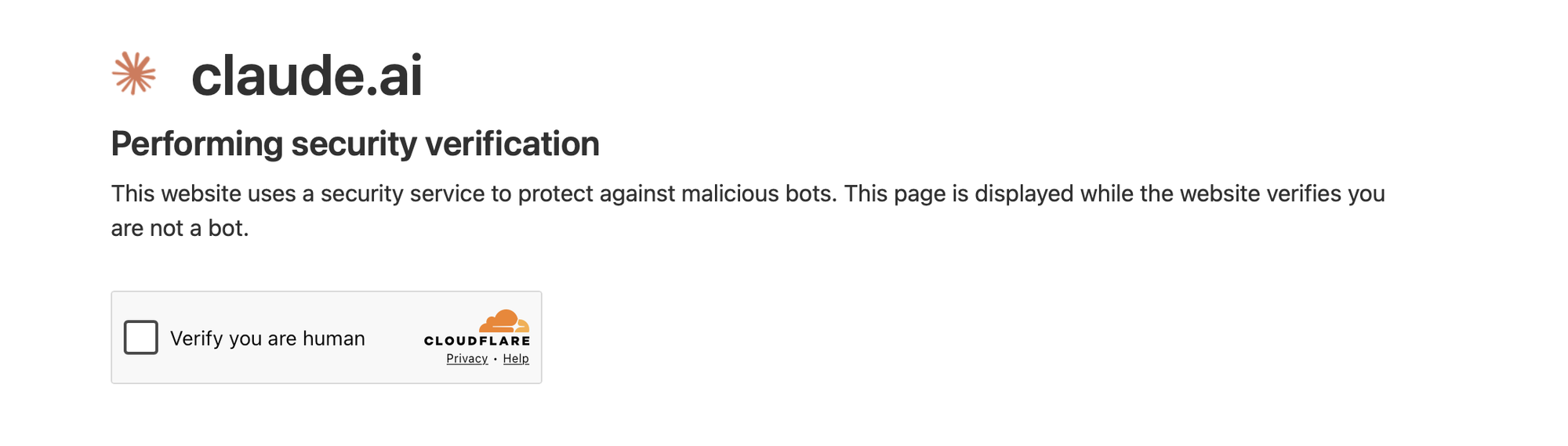
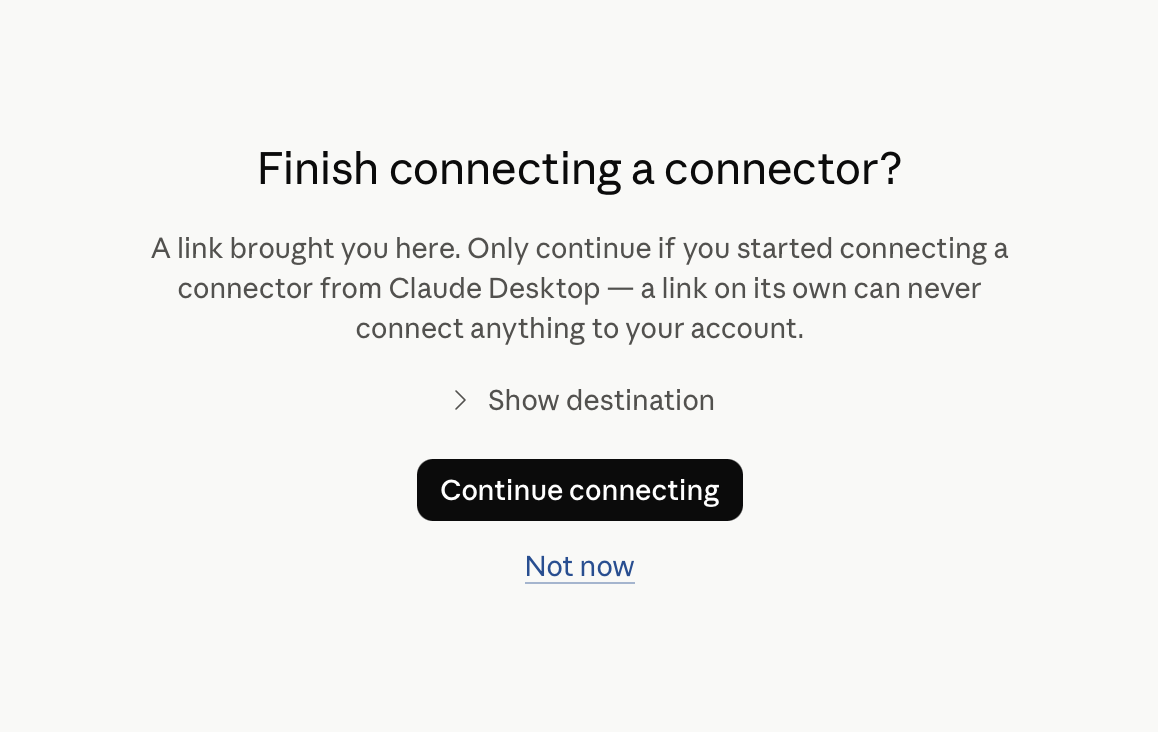
Claude opens your browser. If claude.ai shows a security check, click Verify you are human.
-
Click Continue connecting.
-
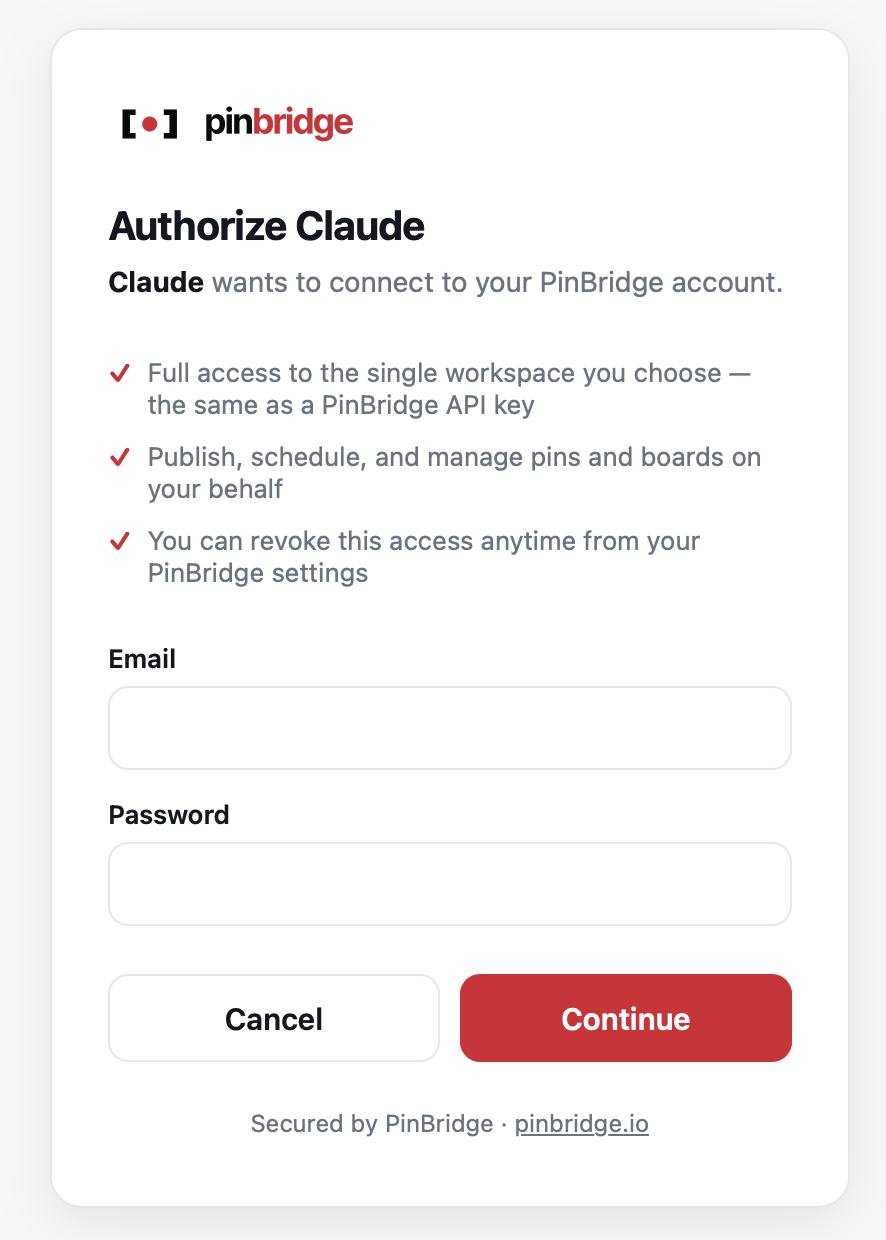
You’re now on PinBridge. Enter your PinBridge email and password and click Continue. The page lists what Claude will be allowed to do.
-
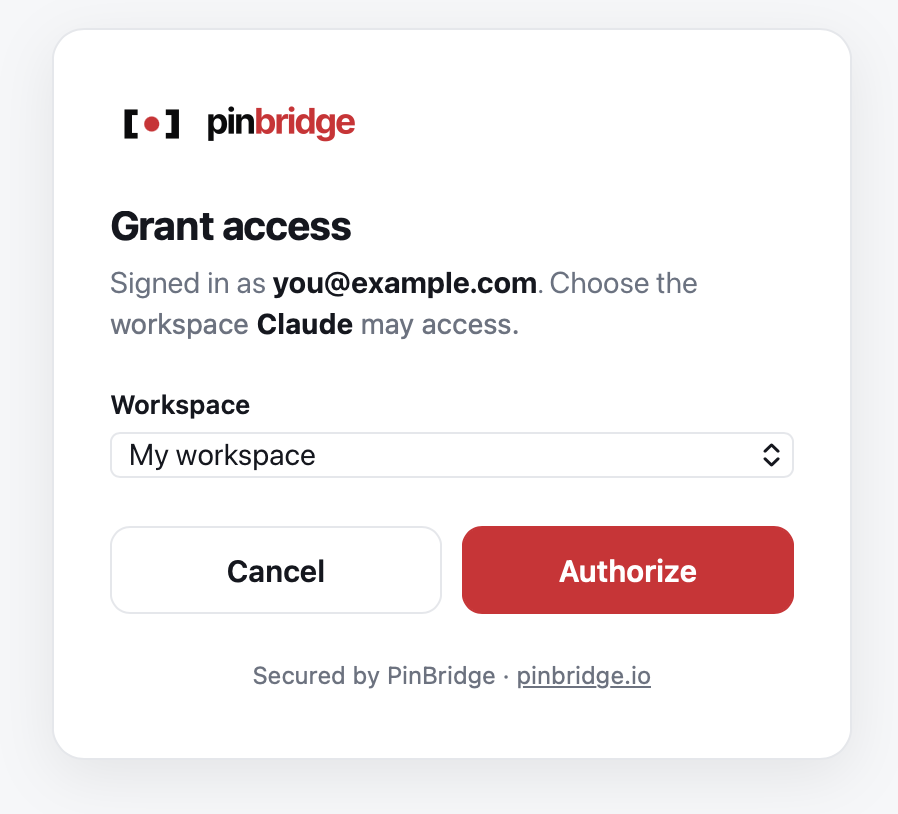
Choose the workspace Claude may access and click Authorize.
-
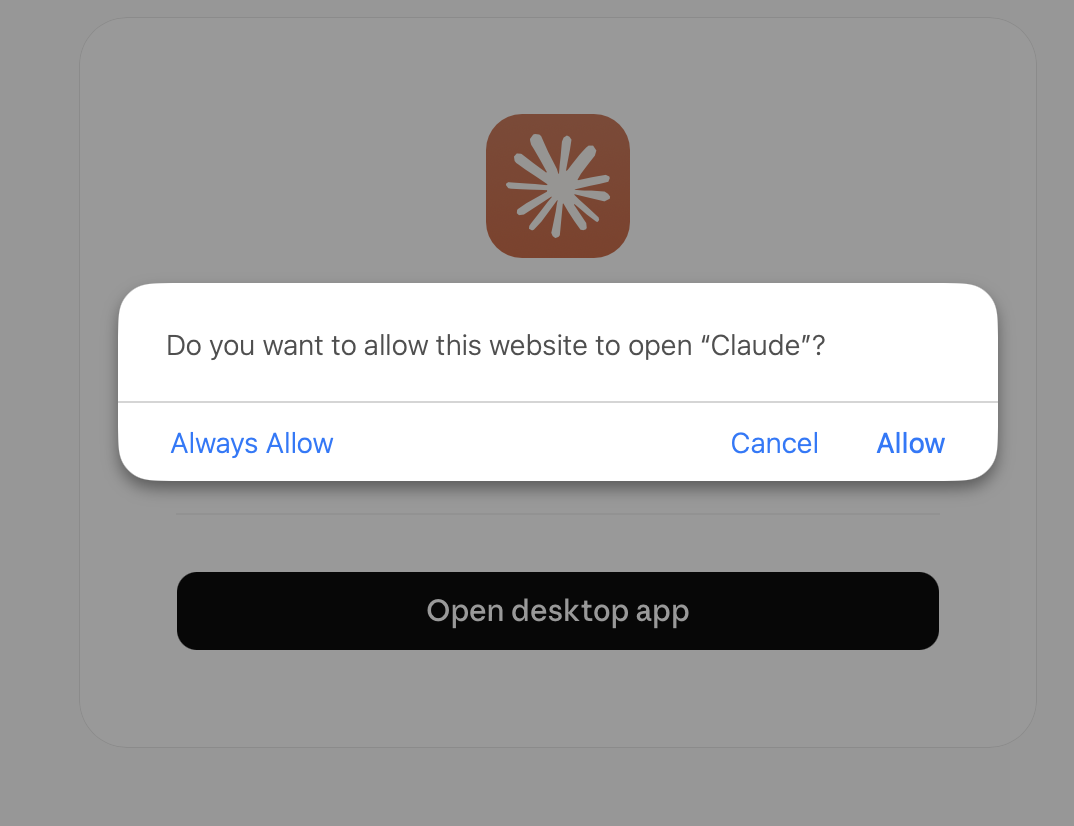
Click Open desktop app, then Allow if your browser asks.
-
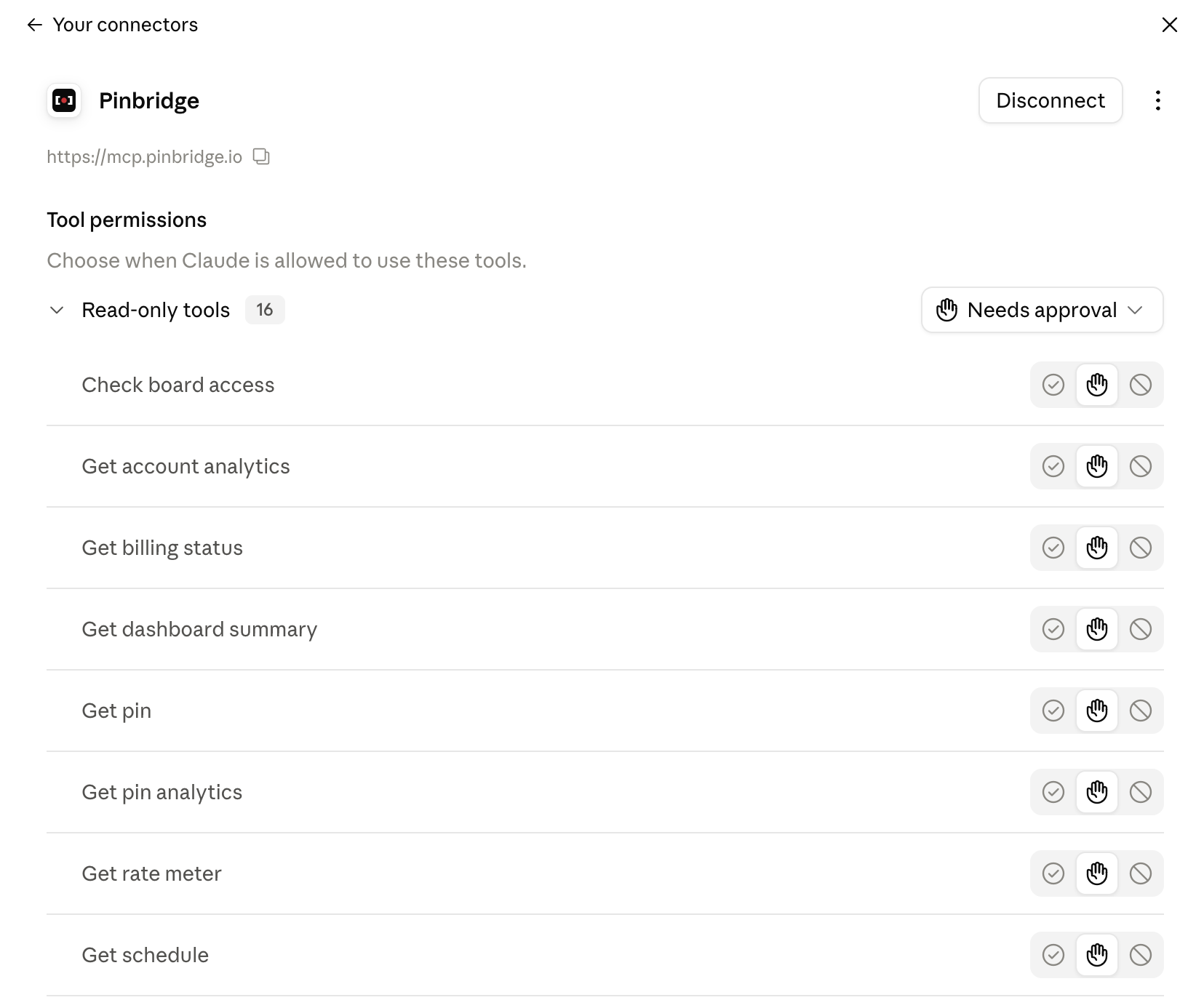
Claude is now connected to PinBridge and can publish on your behalf. The connector page lists every PinBridge tool, and you can decide for each one whether Claude asks for your approval first.
Claude Code
In Claude Code, add the server without a header and authenticate from inside a session:
claude mcp add --transport http pinbridge https://mcp.pinbridge.io
# then, inside Claude Code, run /mcp, pick pinbridge, and choose Authenticate
To check either setup, ask Claude to list your Pinterest accounts. The API-key setup in the MCP setup guide still works. OAuth adds a second way in.
What happens when you click Connect
Claude doesn’t need to know anything about PinBridge in advance. It finds what it needs at two well-known URLs, registers itself, and runs a standard OAuth 2.1 authorization-code flow with PKCE. You can replay the discovery part with curl.
Claude’s first request carries no credentials. The server rejects it and says where to look:
$ curl -si -X POST https://mcp.pinbridge.io | grep -i www-authenticate
www-authenticate: Bearer realm="pinbridge-mcp", resource_metadata="https://mcp.pinbridge.io/.well-known/oauth-protected-resource"
That document (RFC 9728) names the authorization server:
$ curl -s https://mcp.pinbridge.io/.well-known/oauth-protected-resource
{"resource":"https://mcp.pinbridge.io","authorization_servers":["https://api.pinbridge.io"]}
The authorization server publishes its own metadata (RFC 8414):
$ curl -s https://api.pinbridge.io/.well-known/oauth-authorization-server
{
  "issuer": "https://api.pinbridge.io",
  "authorization_endpoint": "https://api.pinbridge.io/v1/oauth/authorize",
  "token_endpoint": "https://api.pinbridge.io/v1/oauth/token",
  "registration_endpoint": "https://api.pinbridge.io/v1/oauth/register",
  "response_types_supported": ["code"],
  "grant_types_supported": ["authorization_code"],
  "code_challenge_methods_supported": ["S256"],
  "token_endpoint_auth_methods_supported": ["none"],
  "scopes_supported": ["mcp"]
}
Three requests follow.
- Claude registers (the Register automatically option from step 5) by sending its name and redirect URI to
/v1/oauth/register(Dynamic Client Registration, RFC 7591) and gets aclient_idback. Nobody at PinBridge approves new clients by hand. Redirect URIs have to be HTTPS, a loopback address, or a native app scheme. - Claude opens
/v1/oauth/authorizein your browser with a PKCEcode_challenge. Only S256 is accepted. You sign in and choose a workspace, and PinBridge redirects back to Claude with a one-time code. - Claude sends that code and its PKCE verifier to
/v1/oauth/token. A code is valid for five minutes and can be redeemed once. If the verifier, the client, or the redirect URI doesn’t match, the exchange fails.
All three endpoints are rate-limited per IP address, which slows down anyone trying to guess passwords through the sign-in form.
The access token is an API key
The token response looks like any other OAuth response:
{"access_token": "pb_…", "token_type": "Bearer", "scope": "mcp"}
The access_token is a normal PinBridge API key, created for this connection and tied to the workspace you chose. We did that on purpose. The MCP server and the API already check pb_ keys on every request, so OAuth didn’t need a second token format, a second validation path, or a separate token store. Everything that applies to a key applies to the connection: workspace isolation, per-account rate handling, idempotent retries, the plan check, and the activity log.
Because it’s a key, you can see it. The API Keys list in the dashboard shows it with an Agent badge and the app’s name, so it stands apart from keys your team created by hand, and you revoke it like any other key. There are no refresh tokens and no expiry timer. The key stays valid until someone revokes it.
Who can connect, and to which workspace
A connection covers one workspace, the one you pick on the consent screen. Claude can’t reach your other workspaces through it.
Not every member can create a connection. The token is a full workspace key, so the picker only lists workspaces where you’re allowed to create API keys: the ones you own, and the ones where you’re an owner or admin of the organization. Operators and client seats won’t see a workspace to pick. OAuth can’t grant more access than the dashboard already would.
Reconnecting doesn’t leave old keys lying around. Claude registers a new client every time it connects, so PinBridge matches connections on the workspace, the person who authorized, and the app’s name. If you reconnect Claude to the same workspace, your previous Claude key is revoked and an api_key.revoked entry appears in the activity log. A teammate who connects their own Claude gets a separate key, and the two connections don’t affect each other.
What to know before you connect
The connection has full access to the workspace. The consent screen says so plainly: publish, schedule, and manage pins and boards, the same as an API key. OAuth connections can’t be narrowed yet. If an agent should only read, or should only touch one Pinterest account, create a manual key with the read scope or an account allow-list and use the header setup instead. That matters most when the workspace holds a client’s Pinterest account.
Removing the connector in Claude doesn’t revoke the key. Claude discards the token, but PinBridge isn’t notified. To cut access, revoke the key under API Keys in the dashboard. Reconnecting also retires the old key, as described above.
Try it
If a config file is what kept you from adding PinBridge to Claude, you can do it from the Connectors screen now. Connect a Pinterest account in the PinBridge dashboard first. An agent can’t do that step for you, because Pinterest’s own consent has to happen in a browser. Then add the connector and ask Claude to publish a pin.
For what an agent can do once it’s connected, read Give an AI agent a safe Pinterest publishing tool. The MCP page has the full tool list, and you can start free on the Playground plan.